
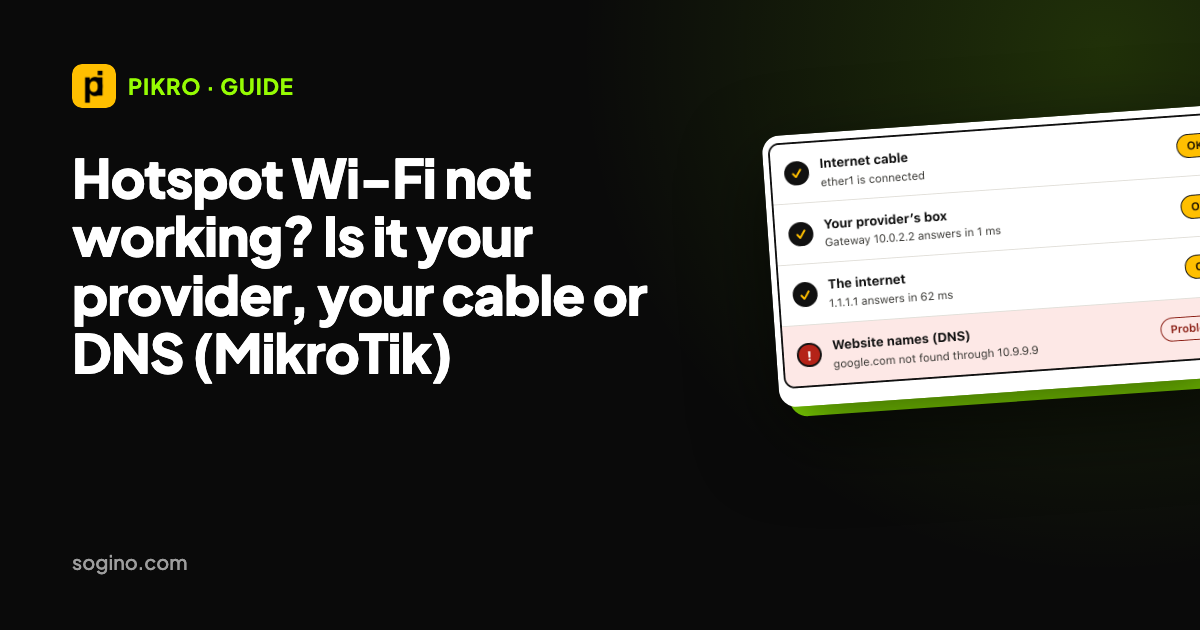
When guests say the Wi-Fi is down, check four things in this order: the internet cable, your provider’s box, the internet itself, and website names (DNS). The first step that fails is your problem, and it tells you who to call. If the cable is loose, you fix it yourself. If the box is stuck, you restart it. If the line is down, your provider must act. If only DNS fails, you can fix it in a minute.
I am Gino Sotongbe, and I build Pikro, a free tool for MikroTik hotspot operators. This guide works with nothing but WinBox. Open New Terminal in WinBox and type the commands below. They work on RouterOS 6 and 7 unless I say otherwise.
Step 1: The internet cable
What it means: your MikroTik router must be physically connected to the internet port, and it must know a route to the internet (the « default route »).
How to check:
/ip route print where dst-address=0.0.0.0/0
/interface print
The first command should show a route with the flag A (active). Note the interface or gateway it uses, usually ether1. In the second list, that interface should have the flag R (running). No R means no link.
What to do
- No
Ron the internet port: check the cable on both ends, try another cable, and make sure the provider’s box is switched on. Power cuts loosen things more often than you would think. - No active default route: the router does not know where the internet is. Check its internet setup (DHCP client or PPPoE) in WinBox. If a technician set it up, call them.
Step 2: Your provider’s box
What it means: the cable is connected, but the box (modem, fibre terminal, radio) may be frozen or have lost its signal. The router sends a small test message to it. This is called a ping.
How to check: use the gateway address from the route you just printed.
/ping 192.168.1.1 count=3Replace 192.168.1.1 with your gateway. If you see replies with times in ms, the box answers. If every line says timeout, it does not. With PPPoE there is no gateway address to ping: the connection itself is the check, and Step 1 already covered it.
What to do
Switch the provider’s box off, wait 30 seconds, switch it on, and wait two minutes. Then ping again. If it still does not answer, call your provider or the technician who installed the box.
Step 3: The internet
What it means: the box answers, but does anything beyond it? We ping a well-known public server, 1.1.1.1. It is an address, not a name, so DNS plays no part in this test.
How to check:
/ping 1.1.1.1 count=3Replies mean the internet is reachable. Timeouts mean the line is down beyond the box.
What to do
Call your provider. You can say: « My box answers, but nothing beyond it does. » That sentence saves you the usual « have you restarted it? » conversation. Nothing you change on the router will help, so do not touch the settings.
Step 4: Website names (DNS)
What it means: phones and computers look up websites by name. DNS is the phone book that turns google.com into an address. When the provider’s DNS servers stop answering, the line is fine but nothing opens. This is a very common cause of « connected, no internet ».
How to check:
:resolve google.comYou should get an IP address back. An error or a long wait means DNS is the problem. To see which servers the router asks:
/ip dns printWhat to do
Switch the router to public DNS servers:
/ip dns set servers=1.1.1.1,8.8.8.8Then run :resolve google.com again. If you use the router for hotspot clients, also check that allow-remote-requests is yes in /ip dns print, otherwise guests cannot use the router as their DNS.
Still broken? The router itself
The clock
Vouchers expire by the router’s clock. After a power cut, a router without automatic time can restart with a wrong date. Tickets then expire too early or too late, and secure connections (HTTPS), including the router’s own update check, fail when the date is wrong. Check:
/system clock print
/system ntp client print
To turn on automatic time on RouterOS 7:
/system ntp client set enabled=yes servers=pool.ntp.orgOn RouterOS 6 the setting is named differently:
/system ntp client set enabled=yes server-dns-names=pool.ntp.orgThe router needs a working internet and DNS to reach that server, so fix steps 1 to 4 first. If the date is still wrong, set it by hand with /system clock set. The date format depends on the version, so check what /system clock print shows and copy that style.
A restart
A router that has run for months can become slow or stuck. Restarting often fixes it:
/system rebootGuests are disconnected for about a minute. Your settings, plans and vouchers are kept.
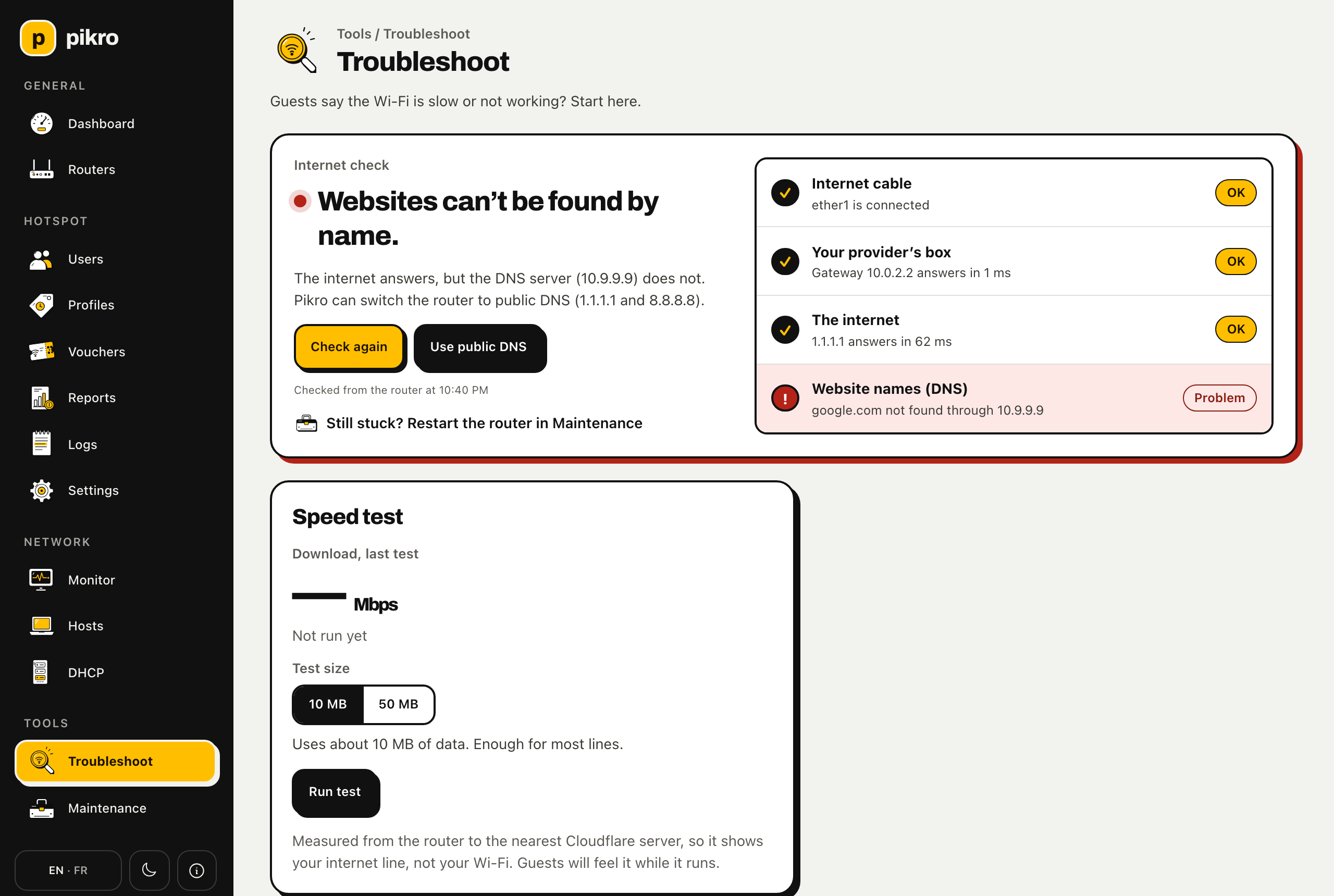
Typing all this at a busy counter is not fun, so Pikro runs the four checks in one click. Open Tools, Troubleshoot: the Internet check runs from the router itself and goes through Internet cable, Your provider’s box, The internet and Website names (DNS). It stops at the first step that fails and says what is wrong in plain words: « The internet cable is unplugged », « Your provider’s box doesn’t answer », « Your provider’s line is down » or « Websites can’t be found by name ». When DNS is the problem, a Use public DNS button switches the router to 1.1.1.1 and 8.8.8.8. If every step passes but guests still say it is slow, the same page has a speed test.
The « Still stuck? Restart the router in Maintenance » link takes you to Tools, Maintenance. It shows the Router clock, with a Turn on automatic time button, checks whether a newer RouterOS exists (it only checks, you still update from WinBox), and has a Restart router button that asks you to confirm. Both pages are available in English and French.
FAQ
Guests are connected to the Wi-Fi but have no internet. Why?
Their phone reaches your router, but the router cannot reach the internet, or cannot translate names. Run steps 1 to 4: the first one that fails tells you whether it is the cable, the provider’s box, the line, or DNS.
How do I know if my provider is the problem?
If the cable is connected and the box answers the ping (steps 1 and 2 pass) but /ping 1.1.1.1 fails (step 3), the problem is beyond the box. Call your provider.
Why do some websites open and others do not?
This usually points to DNS or to a slow, unstable line. Run :resolve google.com, and switch to public DNS if it fails.
If you would rather click than type, have a look at Pikro.